
Blueprint Usage
This page shows the Blueprint workflow for Config Toolkit. Start with the setup section before using the read and write nodes.
For first-time setup and installation, see the Plugin Installation guide.
File Name Behavior
Most nodes have a File Name pin.
| File Name pin | Result |
|---|---|
| Empty | Uses Default Config File Name from project settings. |
Game | Uses Unreal's resolved generated Game.ini. |
MyConfig | Uses Unreal's resolved generated MyConfig.ini. |
Profiles/UserA | Resolves under Unreal's generated config directory and appends .ini if no extension is provided. |
Absolute path ending in .ini | Uses that exact disk file. |
If the value contains a directory but no extension, Config Toolkit appends .ini. Relative paths are resolved under Unreal's generated config directory for the current platform.
Pro Tip: Persistent CVars
If you save values to the [ConsoleVariables] section of Engine.ini, Unreal Engine will automatically apply those CVars every time the game starts. This is perfect for persistent graphics or performance toggles.
Generated config files usually appear under:
Saved/Config/WindowsEditor/Packaged Windows builds usually use:
Saved/Config/Windows/Write One Value
Use Write Config Value to save one Blueprint value.
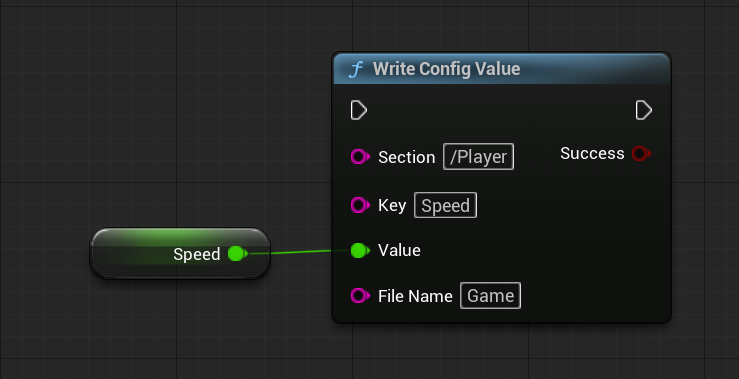
Example:
Section: Player
Key: Speed
Value: 600.0
File Name: Game
Expected .ini output:
[Player]
Speed=600.0
The value pin is a wildcard pin. Connect the actual type you want to save, such as Float, Bool, Name, String, Vector, Rotator, Soft Object Reference, or Soft Class Reference.
Read One Value
Use Read Config Value to read one value back.
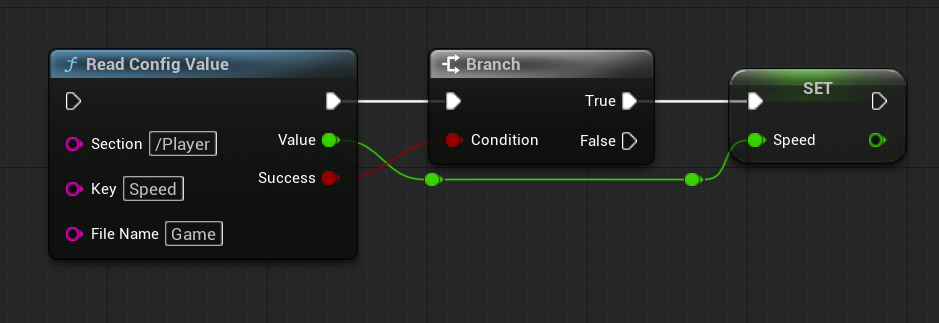
Recommended flow:
Create The Node
Create Read Config Value and set the same file, section, and key used by the write node.
Choose The Output Type
Connect or promote the Value output as the type you expect. The output pin type controls how the saved text is imported.
Branch On Success
Branch on Success and use the value only when the bool is true.
If the saved text cannot be imported into the output pin type, the node returns false and logs the reason under LogConfigToolkit.
Write Arrays
Use Write Config Array to save a Blueprint array using Unreal's native config array format.
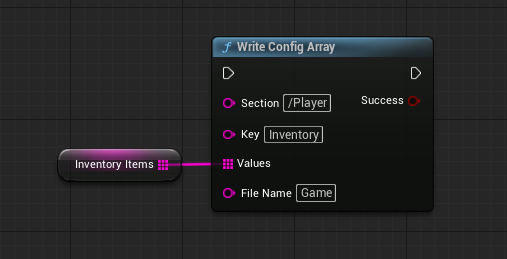
Example output:
[Inventory]
Items=Sword
Items=Shield
Items=Potion
The plugin stores repeated config keys, not JSON. Unreal default config merge files often use +Items=Value, but generated saved config files commonly appear as repeated Items=Value lines.
Read Arrays
Use Read Config Array to read native config array entries back into an array output.
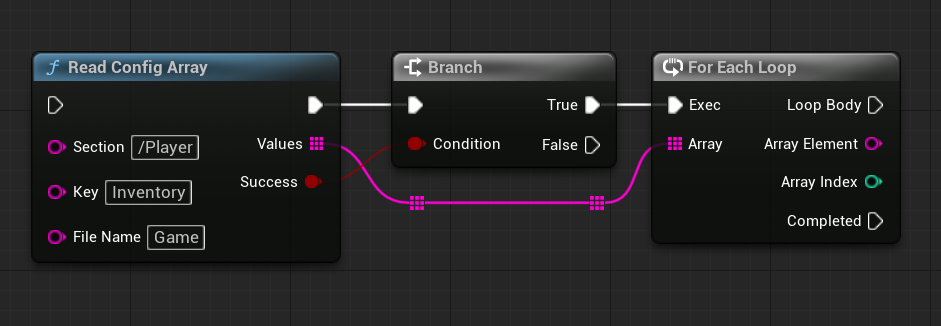
Connect the Values output to a Set node, For Each Loop, or another array node.
Empty Arrays
Unreal config arrays do not have a native explicit empty-array marker in this plugin's format. If you write an empty array, a later read can return false because there are no +Key=Value entries to import.
Add Unique To Array
Use Add Unique To Config Array to add one value only when the serialized value is not already present.
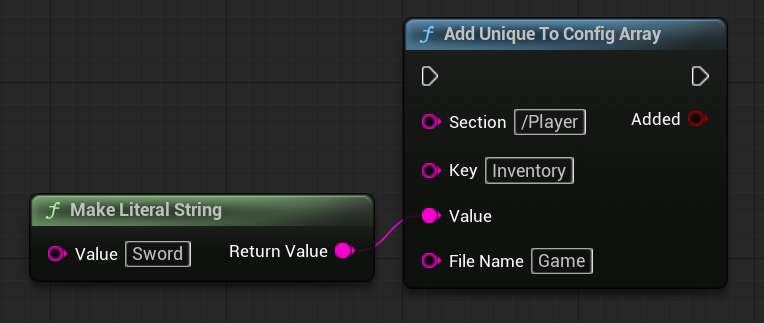
Returns:
| Result | Meaning |
|---|---|
true | The value was added. |
false | The value already existed or the operation failed. Check LogConfigToolkit for details. |
Remove From Array
Use Remove From Config Array to remove matching values from a config array.
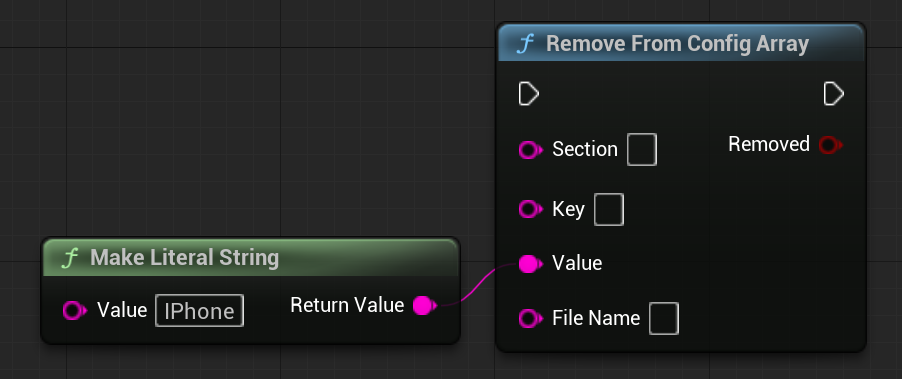
Returns:
| Result | Meaning |
|---|---|
true | At least one matching value was removed. |
false | No matching value was found or the operation failed. |
Soft Object References
Soft references are the safe workflow for asset config values. Config Toolkit stores the asset path string, but it returns a Soft Object Reference pin instead of loading the asset.
Use this when Automatically Handle Soft Reference Paths is enabled:
Write The Soft Reference
Connect a Soft Object Reference variable to Write Config Value. Config Toolkit writes the soft path string.
Read The Soft Reference
Read it back into a Soft Object Reference output pin. The read succeeds without loading the asset.
Load Only When Needed
Use Unreal's native Async Load Asset node when you actually need the loaded object.
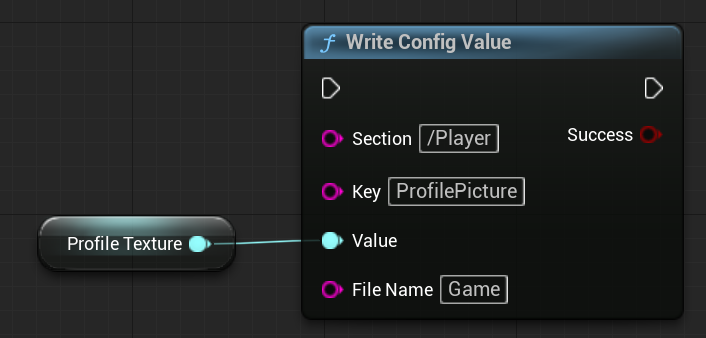
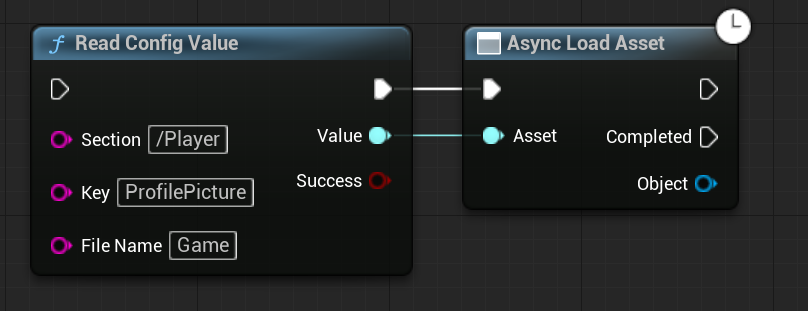
Important behavior:
- Reading into a
Soft Object Referencepin succeeds without loading the asset. - Writing a hard object reference can save its existing path because the object is already loaded.
- Reading into a hard object reference pin fails by design because that would require synchronous loading.
Stringpins are preserved as raw strings. The plugin does not inspect strings and guess whether they are asset paths.
Soft Class References
Soft class config values work the same way as soft object values.
Use this when Automatically Handle Soft Reference Paths is enabled:
Write The Class Path
Connect a Soft Class Reference variable to Write Config Value. Config Toolkit writes the class path string.
Read Into A Soft Class
Read it back into a Soft Class Reference output pin.
Load Asynchronously
Use Unreal's async loading workflow before using the loaded class.
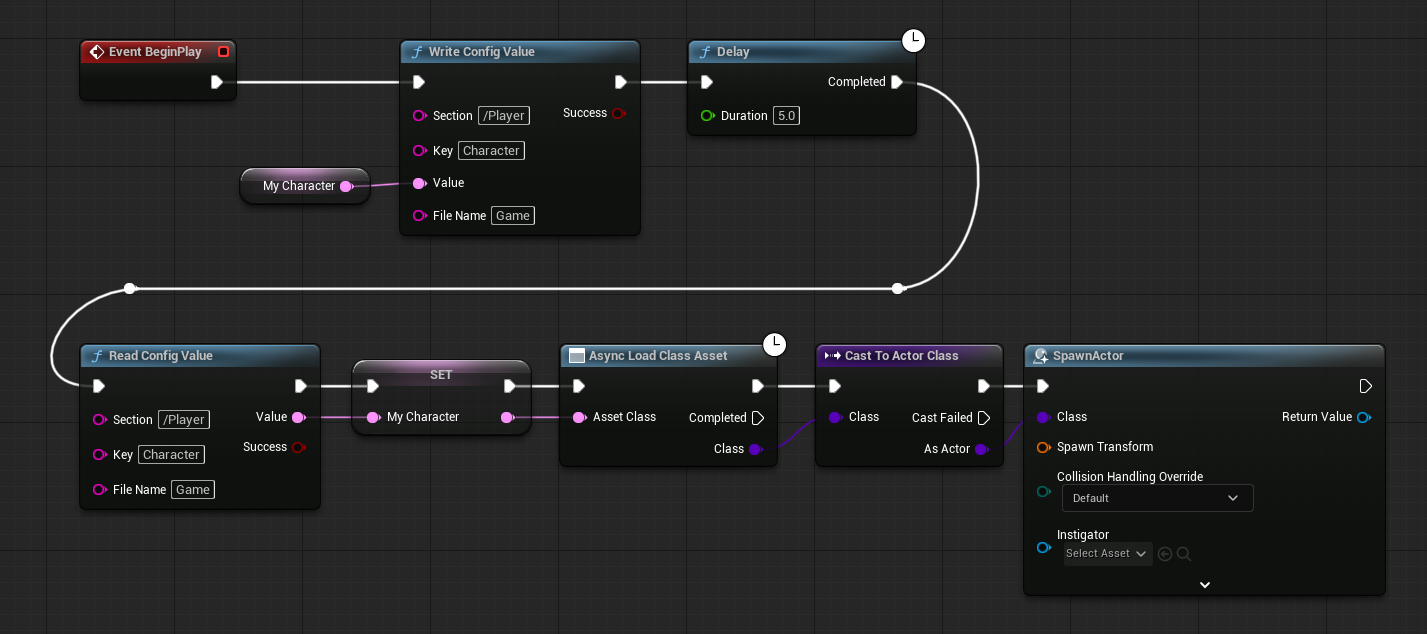
Hard class reads fail by design. Read into a soft class reference, then load asynchronously.
Manual Asset And Class Conversion
If you disable Automatically Handle Soft Reference Paths, or if you prefer explicit conversion nodes, use the manual pure helpers.
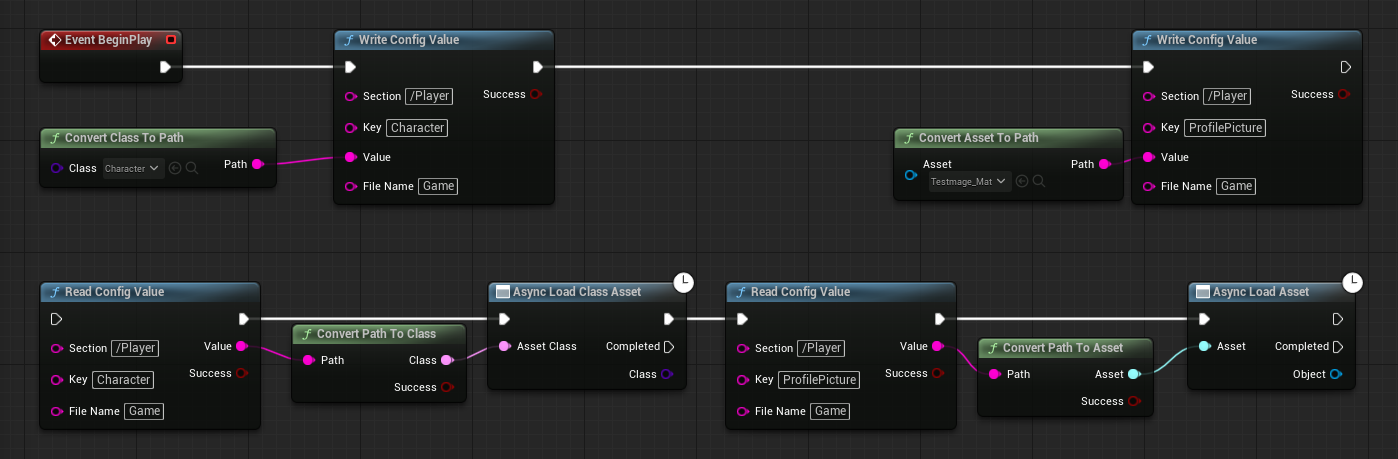
Available helpers:
| Node | Use |
|---|---|
Convert Asset To Path | Converts an already available asset reference into a soft object path string. |
Convert Class To Path | Converts an already available class reference into a soft class path string. |
Convert Path To Asset | Converts a path string into a Soft Object Reference and returns Success. It does not load the asset. |
Convert Path To Class | Converts a path string into a Soft Class Reference and returns Success. It does not load the class. |
Use the Success bool before using the converted soft reference.
Encrypted Strings
Use Write Encrypted String and Read Encrypted String for encrypted string values.

Encryption Setup
Set AES Encryption Key in project settings before using encrypted string nodes. The key must be exactly 32 UTF-8 bytes. Only the value is encrypted; the file name, section name, and key name remain readable in the .ini file. Treat encrypted strings as lightweight local config privacy, not as a secure vault for high-value secrets.
Check Files And Keys
Use Does Config File Exist to check whether the resolved .ini exists on disk.
Use Does Config Key Exist to check for a key.
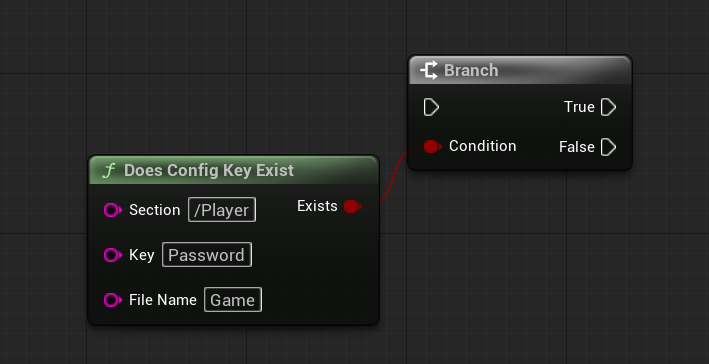
Does Config Key Exist behavior:
| Section pin | Behavior |
|---|---|
| Non-empty | Checks only that section. |
| Empty | Searches every section in the file for the key. |
Remove Keys, Sections, And Files
Use these nodes for cleanup:
| Node | Use |
|---|---|
Clear Config Key | Removes one key from one section. |
Clear Config Section | Empties all keys from a section but leaves the [SectionName] header intact in the file. |
Remove Config Section | Completely removes a whole section, including the header and all its keys. |
Delete Config File | Deletes a generated project .ini file and clears cached config data so stale memory does not recreate it later. |
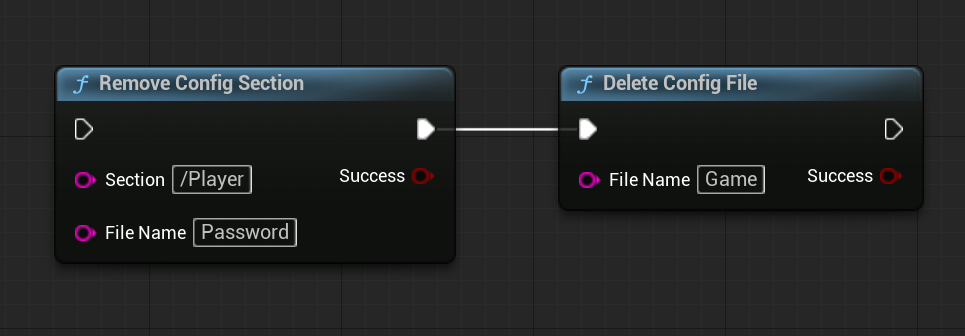
Section removal and key removal respect Automatically Flush Config. If automatic flush is disabled, call Flush Config when you want the deletion written to disk.
Delete Config File deletes a generated project config file from disk, or deletes a non-generated config file when File Name is an absolute local .ini path. Bare names, empty input, and relative paths still resolve under the project's generated config directory. Relative paths such as Config/Hello.ini do not target Project/Config. Source, plugin, and other-drive config files require an absolute local .ini path.
Manual Flush Workflow
If Automatically Flush Config is disabled, write and cleanup nodes update the config cache first. Call Flush Config when you want the current cached config state written to disk.
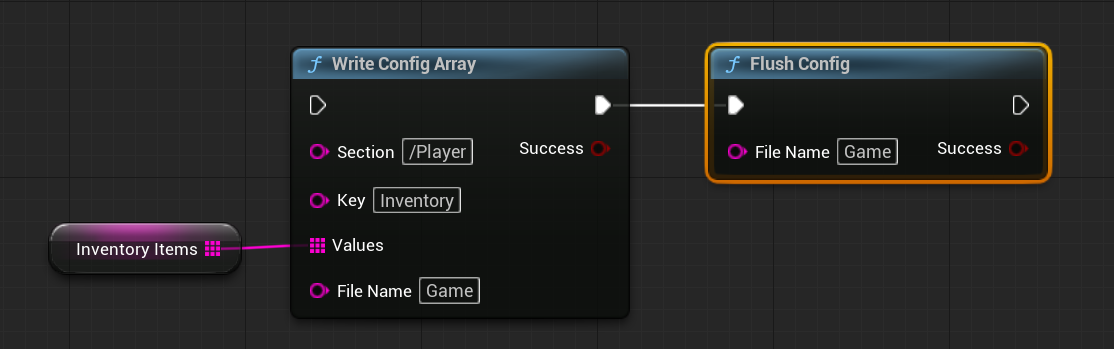
Recommended batched-write flow:
Disable Automatic Flush
Disable Automatically Flush Config before the batch starts.
Run The Batch
Run several write, remove, or clear nodes against the same file.
Flush Once
Call Flush Config once for the same file and check the Success output.
Get Sections
Use Get Config Sections to list all section names from a config file.
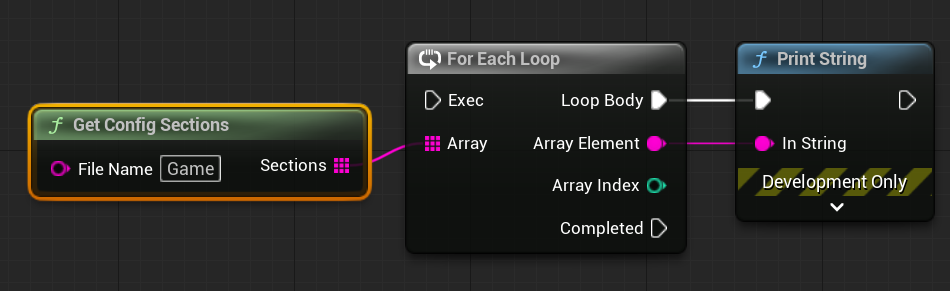
This is useful for debug menus, user profile lists, and validation tools.
Last updated on